Monday, February 24, 2014

Ning Widget Padding

I'm playing around with Ning a little and am trying to take control of my padding and margins.
To help isolate styles I've set some basic background colors.  This helped me get a better handling on where all the empty-space was coming from and hopefully it'll help someone else out there.


Friday, January 10, 2014

Kentico CMS 7 Installation

Getting started materials:
Forums: http://devnet.kentico.com/Forums.aspx
Online documentation: http://devnet.kentico.com/Documentation.aspx
Support: https://www.kentico.com/Support
Client portal: https://client.kentico.com
Download: https://client.kentico.com/Download

Step 1: Download the installer

When I went to this area I was prompted with 2 options:
* Kentico CMS 7 & EMS
* Kentico CMS 7.0 classic installer for .NET 3.5

Use the Kentico CMS 7 & EMS option. Even if you don't have the EMS license, it won't matter. All the DLLs, code and modules are included with all licenses. The license key enables/disables features automatically. 

Step 2: Run the installer

The install process is fast and intuitive.  I've done a lot of software and installs and this is one of the best I've ever used.  The documentation is very clear and should answer any questions you have.  I'd encourage you to use the discussion forums if anything is unclear.
After the installer completes a sample site will open.  At the top of the page will be links to:
CMS Desk - the tool to edit your website: http://localhost/KenticoCMS7/cmsdesk/default.aspx
CMS Site Manager - the admin interface to your installation: http://localhost/KenticoCMS7/cmssitemanager/default.aspx
The default authentication to both sites is administrator/<blank>

Step 3: Register your license

Assuming you've already purchased Kentico, you'll need to visit the client portal to register your license.  Copy/paste your code into the serial number field and choose a site name.
Next you'll need to provide your domain name to generate a license key (on the same page).
Copy the license key and open CMS Site Manager.  Choose the licenses tab, click the "New Licenses" button and follow the simple instructions.

Step 4: Change the admin password

From CMS Site Manager select the Administration tab and Users from the side navigation.  Open the administrator account, then select the password tab and change the password.  While you are in the account you might want to change the admin email address also.

Monday, November 11, 2013

Interact-Interact v7 Widget Sizes

-- this is obsolete after the 7.2 launch which includes an increase amount of widget size options --

I'm just getting my feet wet with the responsive framework of Interact-Intranet v7 and the widget design challenges that go along with that. 

When our v7 instance loads, for a heart-beat we see a light-grey widget outline which quickly fills in with content.  It looks as though the canvas accommodates 4 vertical columns on the landing homepage and 3 on subsequent area homepages due to the side navigation consuming a column.

Click the image for a larger view


When I added the Twitter widget I noticed that while it looks good on my 1280x1024 monitor it doesn't fully display on my 1024x768 monitor (employee standard).  I could have guessed a few times and probably come up with a good size, but knowing the widget sizes and understanding how they work is pretty important so I thought I'd put in some due diligence.

To help me figure out common widget sizes, specifically for the smaller widgets, I typically create free text widgets that include a simple 100% x 100% table with a colored background.  Then I take a screenshot of what I'm looking at and use Paint to figure out the dimensions.  With v7 I've run into an issue embedding a table into the free text widget so I did the next best thing - inserted a square red image!  I initially used a 1278x990 image, but later scaled it down to 280x280 because of issues I was running into with spacing issues caused by the image being rectangle. 

Click the image for a larger view


Note: These test were done in IE10.0.  I found that using Firefox altered the widget sizes slightly (2px difference at both sizes w/o a title).

The next test I ran was to determine the impact of resizing on the content of an image.  For this I used a 1k x 1k image of horizontal and vertical lines.  The result is that the image appears to automatically resize based upon width.  Because the widget sizes are fixed and images are aligned to the top, the bottom of the image is cut off.

Click the image for a larger view

What does this all mean?

If you are going to use an image in a free-text widget you would be advised
to not include a title since the title seems to have priority and the image is secondary.  Additionally, titles can wrap depending upon the resolution the page is viewed at which can cause a fairly significant difference in the amount of image height that displays.

What happened to the Twitter widget?

In the end I settled on a Twitter defined widget size of 275px (height) which displays the full widget at 1280x1024 and enough of it at 1024x768.
Click the image for a larger view

Friday, July 19, 2013

Interact Intranet: Diagnosing problems with AD sync

From time to time you might notice issues with accounts in your intranet not properly synchronizing with your AD system.  If this is the case the first step is to contact support which will give you the fastest resolution to your problem.

If you are handy with SQL and AD you can try to identify the issue yourself by examining the AD sync logs which are stored in a table called UMI_audit.

This query will return any errors from the last two weeks:
    select * from UMI_audit where errormsg is not null
This query will identify any users that aren't configured to sync:
     select * from umi_person where sync = 0  

The most common issues we encounter with AD sync are accounts that have been orphaned as a result of incorrect expiration.

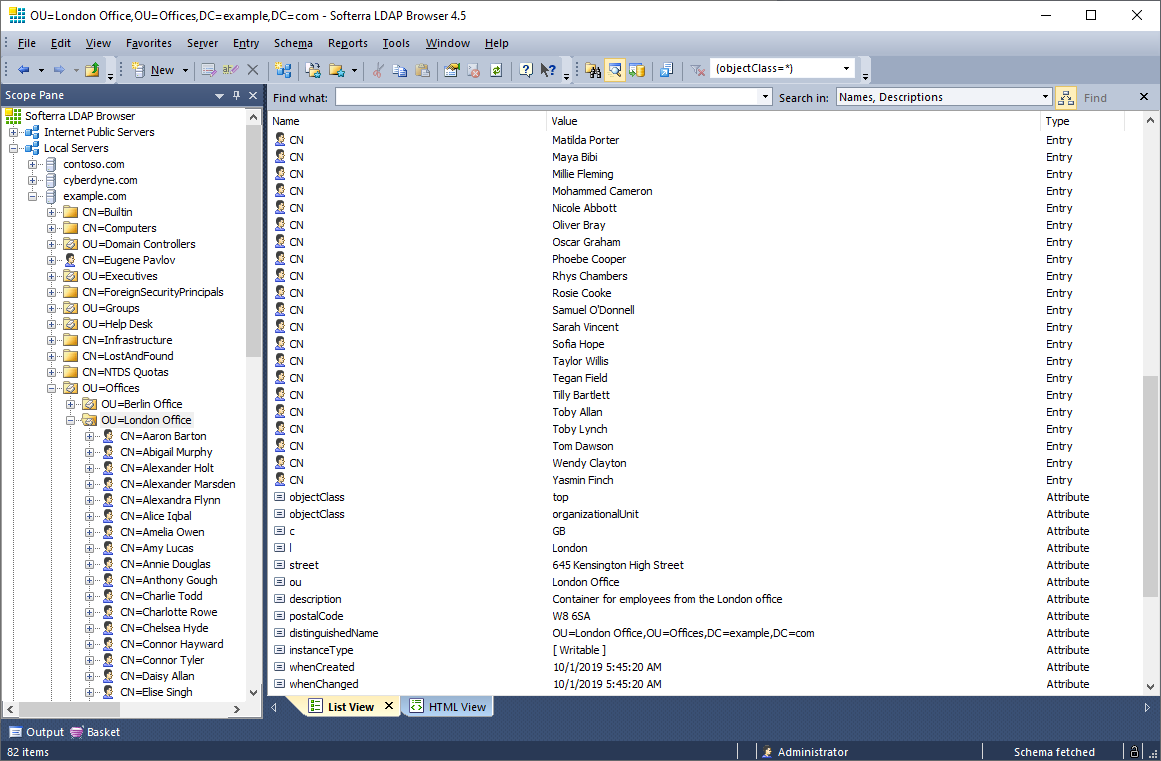
If your IT department isn't willing to give you AD access and you aren't sure how to verify data on the AD side, I'd recommend installing Softerra LDAP browser.  With a minute or two of configuration you'll have a READ only view into your organizations AD system.

Softerra LDAP Browser is a lightweight version of Softerra LDAP Administrator. It supports read-only operations that do not modify LDAP directory data, e.g. browsing, search, export, etc. For complete, fully functional management of LDAP directories you need Softerra LDAP Administrator.

Softerra LDAP Browser is the industry-leading software for browsing and analyzing LDAP directories. It provides a wide variety of features for handy viewing of directory contents, getting information about directory infrastructure and objects.

Right after the very first release Softerra LDAP Browser has become a real breakthrough in IT market thanks to its simplicity and power in equal measures. The software holds highest positions for 10 years already. Some of its features are unique - to date there is anything to match their efficiency in the existing LDAP software packages.

Intranet, Portal, Social Network, Community vendor list

In my opinion, the days when intranets were distinct from social networks is behind us.  Most intranet vendors these days include every social feature that social network vendors offer, and vice versa.    Similar to the transition half a dozen years ago when the term intranet consumed the notion of portals.

Below is a list of a few vendors that brand themselves as social, intranet, portal and community providers.  Feel free to email me or comment below if I'm missing anyone.

Acquia
Anahita
Atlassian - Confluence
Big Tent
Bloomfire
BlueWiki
BoonEx
BrightSpot
BuddyPress
Chatter
CommunityFire
CrowdVine
Elgg
Elgg Social
eXo
Fuze
Grou.ps
Groupiest
Grouply
GroupSite
IBM WebSphere
Igloo
INGage
Interact-Intranet
JCow
Jive Software
JomSocial
Kapow
Liferay
Lithium
MindTouch
Mixxt
MooSocial
MoxieSoft
Newsgator
Ning
Noodle
Oracle WebCenter
Orchid Software
Oxwall
PHPFox
Plone
Qlubb
SayMedia
ShareTronix
Social Go
SocialCast
SocialEngine
SocialText
Spurz
StatusNet
Telligent
ThoughtFarmer
Tibbr
Traction
Wall.FM
Webs
WSO2
Yammer

Wednesday, July 17, 2013

Interact Intranet v5 Search Index Rebuild

Each time we apply an update to our Interact v5 environment our search index jams and fails to index new content.  After 5-6 of these occurrences I've discovered the trick to rectify this issue which allows the search index to begin functioning in a normal manner again - it also indexes content that it had previously missed. 

While I don't recommend any customers use this process without first discussing with Interact, I'm posting the steps because of the frequency in which I need to refer to them:
  • Login to SQL and open the Interact db
  • Expand Storage
  • Expand Full Text Catalogs
  • Right click on Catalog1
  • Click Rebuild
The repair will take a few minutes depending upon the size of your index (we have roughly 10k items in our search index and the rebuild takes about 10 minutes).  While the index is being rebuilt nothing will be returned in your search results.

Tuesday, June 4, 2013

Interact-Intranet: Using Google Analytics to Capture More Data

Widget tracking isn't accounted for in the v5 Interact-Intranet Analytics module. If you don't have that module you can implement your own custom code file logging or if you have the module and want to track custom widget (or free text widget iframes) you might want to consider going the Google Analytics route.  In addition to tracking your custom widgets you can also use Google Analytics to track your site as a whole and see just how many people are using features and functions that you otherwise wouldn't be able to track.

This is a guide of my efforts to track our entire site and our custom widgets.

Update: Recently found there are a lot of additional 3rd party analytics tools!
Checkout this great list http://www.onextrapixel.com/2013/07/16/ten-best-alternatives-to-google-analytics

Step 1: Login to Google Analytics

http://www.google.com/analytics/

Step 2: Create an Account

From the home window start by clicking the "New Account" button. You can have multiple accounts and I would recommend creating one for your entire intranet. The only important piece of information when doing this step is correctly entering your Web Site URL. Intranets can be tracked assuming they meet the following requirements:

Step 3: Create a Profile

The profile for an Analytics Account is the gateway to the website reports: it determines which data from your site appears in the reports. more info on accounts, users properties, and profiles

Step 4: Add Tracking Info

Copy the tracking code snippet to your clipboard.  Next go to your intranet's analytics: Administration: Third Party Analytics area and paste the code  into the text-box.  Click the save button and your tracking will begin immediately.

Step 5: Verify Your Tracking

Click the Reporting tab at the top of the page, then on the side navigation select the Real-Time Standard Report: Overview.  You should immediately begin seeing your site's usage metrics come through.  Only the Real-Time reports are live, all other reports will populate around midnight PST with the previous day's data.


Step 6: Track Custom Widgets

In the previous steps we implemented tracking on your entire site.  To track non-intranet or widget views you'll need to additionally add the same tracking code to those specific files.  While JavaScript isn't allowed in free text widgets, if you embed an iframe within that widget you can add the JavaScript to a custom page that is called within the iframe.


Notes

We haven't noticed any performance issues as a result of using Google Analytics.